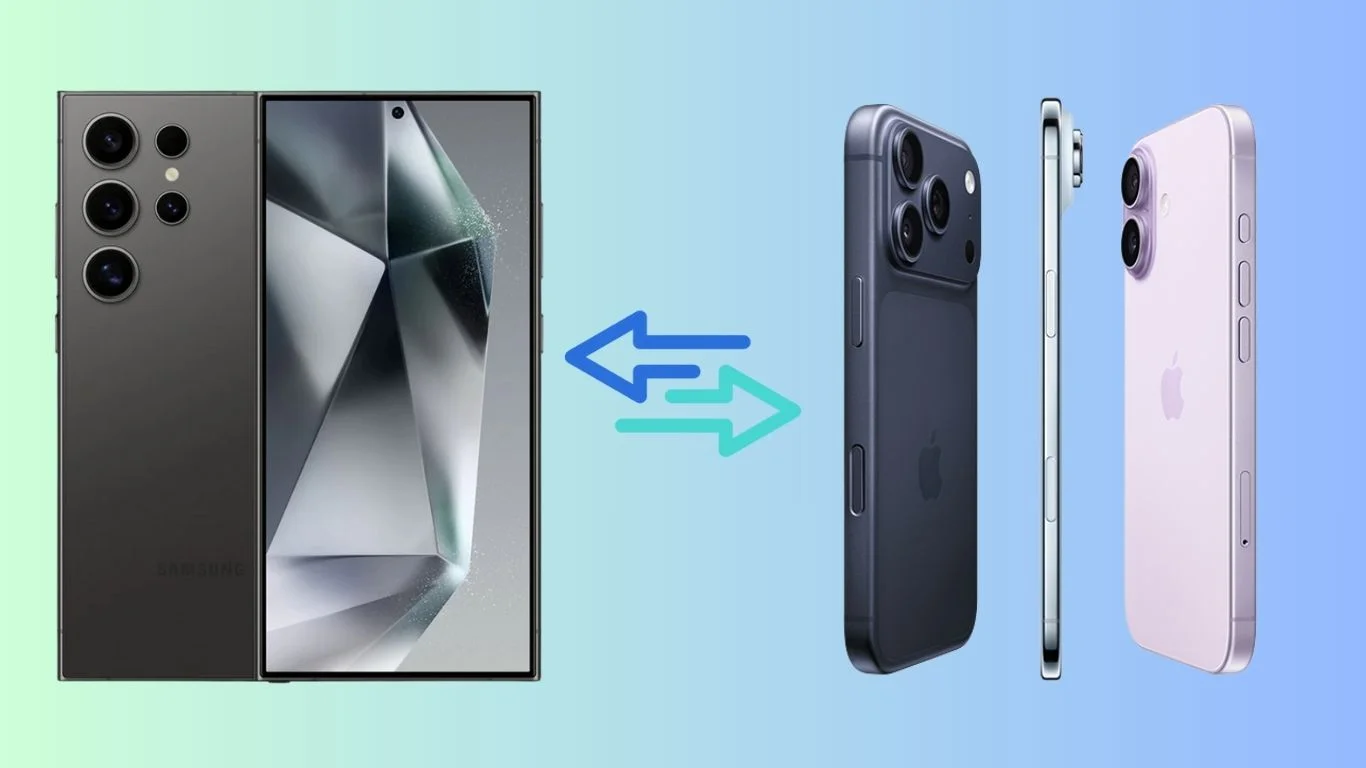
You can switch from iPhone to Samsung without losing your data. You only need the right tools and a clear process. Follow the steps below to move your photos, contacts, messages, apps, and files safely.
Use Samsung Smart Switch
Samsung Smart Switch moves most of your iPhone data to your Samsung phone.
You need your iPhone, your Samsung Galaxy device, a stable internet connection, and your Apple ID login.
Steps
• Install Smart Switch on your Samsung phone
• Connect your iPhone with a cable or use iCloud
• Choose the data you want to transfer
• Start the transfer and wait for completion
Transfer using Cable
A cable transfer is faster. It also moves more data types.
• Connect your iPhone to your Samsung with a Lightning to USB C cable
• Open Smart Switch on Samsung
• Select Transfer from iPhone
• Unlock the iPhone and trust the device
• Pick the data categories
• Begin the transfer
Transfer using iCloud
If you do not have a cable, you can use iCloud.
• Back up your iPhone to iCloud
• Open Smart Switch on Samsung
• Choose Transfer via iCloud
• Sign in with your Apple ID
• Select the backup
• Choose data and start the copy
Move WhatsApp Chats
Samsung supports WhatsApp chat migration from iPhone.
• Install WhatsApp on your Samsung
• Open Smart Switch and connect iPhone
• Choose WhatsApp in the list
• Follow the on screen instructions
• Complete setup on Samsung and restore chats
Move Photos and Videos with Google Photos
Google Photos keeps your media synced across devices.
• Install Google Photos on your iPhone
• Upload all photos and videos
• Sign in to Google Photos on Samsung
• Your library becomes available automatically
Move Music
Apple Music and Spotify both work on Samsung.
• Install the same app on Samsung
• Sign in with your account
• Your playlists and library appear
Move Notes
You can move notes with email sync.
• Add your Gmail or Outlook account to iPhone Notes
• Enable Notes sync
• Add the same account on Samsung
• Notes appear under the synced folder
What Not to Expect
Some iOS specific apps will not transfer. You must download Android versions manually.
Paid apps need to be purchased again if they do not support cross platform accounts.
Tips for a Smooth Transfer
• Charge both devices to at least 60 percent
• Connect to fast WiFi
• Keep the phones close during transfer
• Do not use the devices while data moves
• Update both phones to the latest software
You can move your data from iPhone to Samsung in minutes. Smart Switch handles most items. Google Photos and cloud apps cover the rest. This gives you a clean start on your new Galaxy device without losing your important files.
FAQs
You get the fastest results when you use a cable with Samsung Smart Switch. A cable moves more data and completes the transfer quicker than cloud options.
Yes. Smart Switch supports WhatsApp chat transfer. You connect both phones, choose WhatsApp during the transfer, then verify your number on your Samsung phone to restore all chats.
No. Your iPhone apps do not move automatically. Smart Switch installs Android versions of apps if they exist. Any iOS only apps must be downloaded manually from the Play Store.
Yes. You can move photos through iCloud or Google Photos. You upload the photos on your iPhone and then sign in to the same account on your Samsung phone to access them.
No. Smart Switch keeps the completed data safe. You can restart the transfer and continue. You should keep both phones charged and avoid using them during the transfer to prevent interruptions.